




Company Card Settings
Company Card Settings
Workspace Admins can manage company card settings, export logic, and eReceipt functionality at the workspace level. This guide outlines how to configure your company card connection, route expenses to accounting systems, and automate receipt handling.
Manage Company Card Settings for Commercial and Direct Feeds
To update your Company Card feed settings:
- Go to Settings > Workspaces > [Workspace Name] > Company Cards.
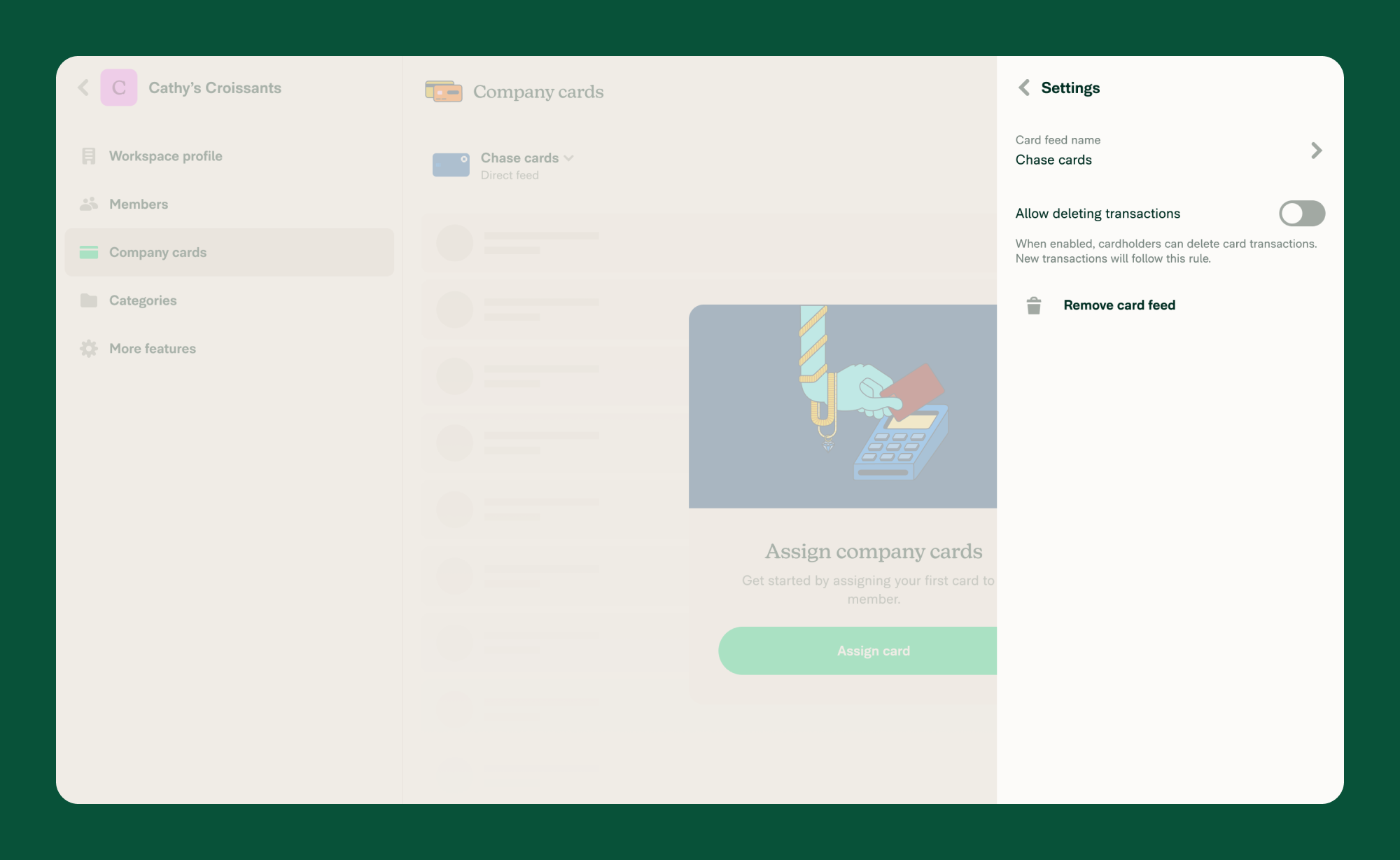
- Click Settings in the top right corner.
You can manage the following options:
-
Card feed name
Update the name of the card feed to help identify it. -
Allow deleting transactions
Enable this setting to allow cardholders to delete card transactions.
Note: This setting only applies to transactions imported after the setting is enabled. -
Remove card feed
Remove the card feed from the workspace and unassign all cards. If the feed is not connected to another workspace, it is permanently deleted.
Note: Removing the feed or unassigning a card deletes all imported expenses in the Unreported and Draft states.
How to Export Transactions to Your Accounting System
If you’ve connected accounting software (like QuickBooks, NetSuite, or Xero), you can export company card expenses either to a central account or individual accounts.
How to Export to a Central Account
To apply this setting to all card expenses in the workspace:
- Go to Workspaces > [Workspace Name] > Accounting > Connections > Export.
- Under Export company card expenses as, choose Central account.
How to Export to Individual Accounts
To override the central export account per card:
- Go to Workspaces > [Workspace Name] > Company Cards.
- Click on an assigned card to open the Card Details page.
- Select a specific export account for that card.
Note: If the card is set to Default Card, the central export account will be used.
How to Use eReceipts with Third-Party Card Feeds
eReceipts are digital receipts that replace paper ones for many USD transactions of $75 or less on commercial and direct card feeds.
- Go to Workspaces > [Workspace Name] > More Features and toggle on Rules.
- Navigate to the Rules section.
- Enable eReceipts.
Things to Note:
- eReceipts are not generated for certain categories, like lodging.
- Missing or incorrect category data may prevent eReceipts from being applied.
- Manually re-categorizing an expense can invalidate an existing eReceipt.
FAQ
Are commercial and direct card feeds limited by plan?
Yes, below is a breakdown:
- On the Collect plan, you can connect one commercial or direct feed.
- The Control plan supports unlimited card connections.
- The Expensify Card is available on both plans.
When do direct or commercial feed transactions import?
Transactions import after a card is assigned. Once a purchase posts (typically within 1–3 business days), it will appear in the cardholder’s account.
Note: Pending transactions are not imported.


